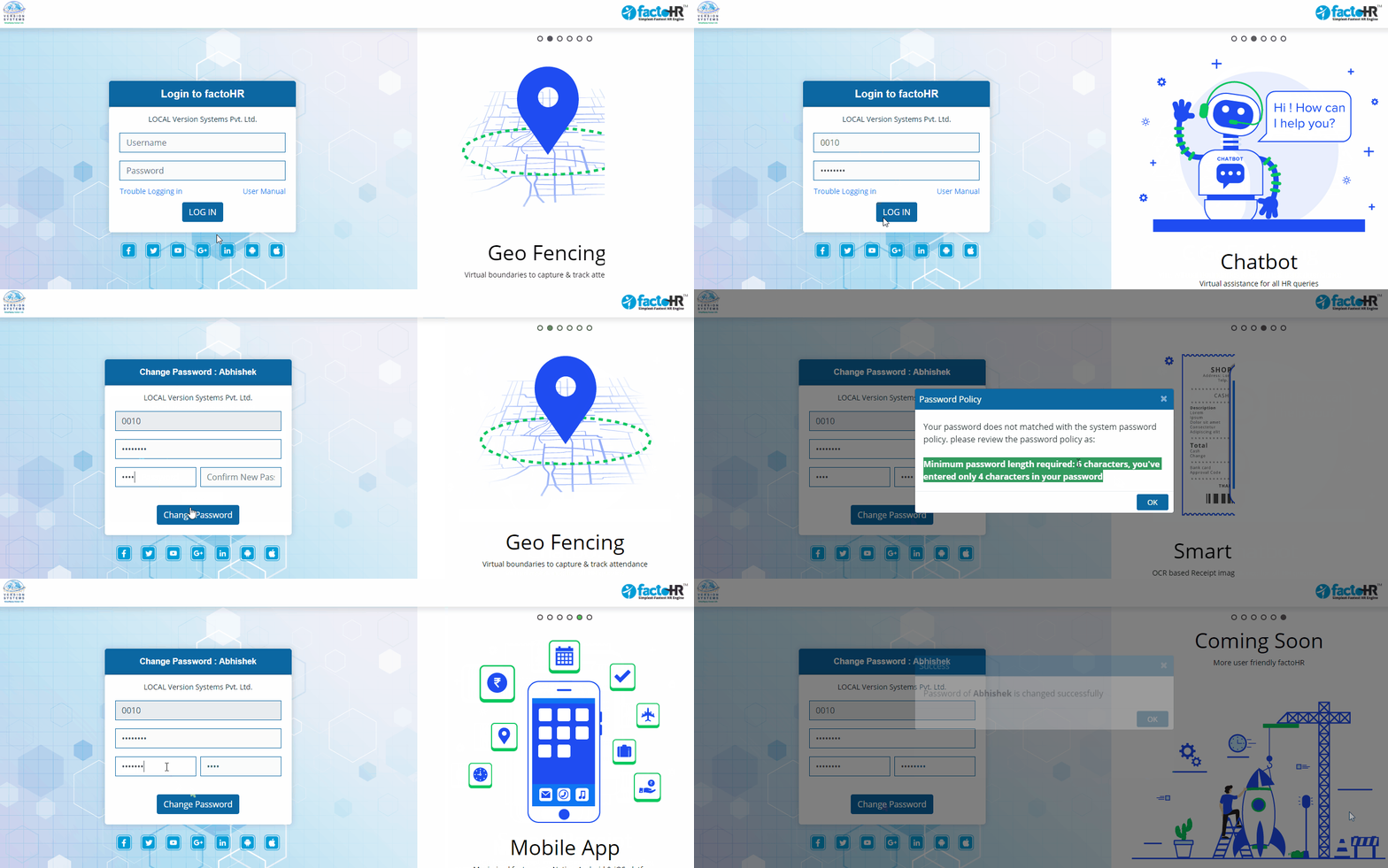
The below shown login screen will be used for Admin user and employee user ( ESS ) to access FactoHR web.
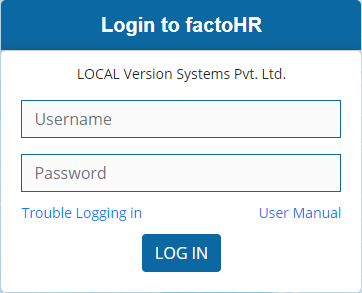
- At the time of Login, Username will be your employee code or separate admin login id if provided.
- Password for First time Login will different as per company policy. It will be either Date Of birth in DDMMYYYY format Or Employee code Or PAN Number
- Once you logged in, it will immediately ask you to change your password. Type your old/existing, then type New password it should be matched with confirm password .
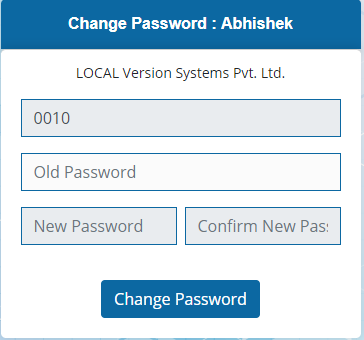
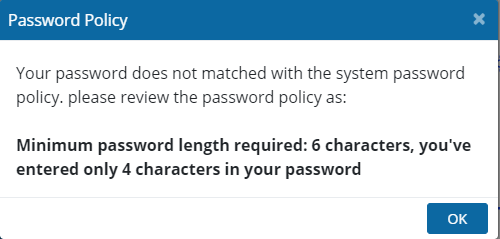
- Setting New password’s Criteria/Policy will be different according to configuration, For example Minimum characters, Only Numbers, Only Alphabets, Numbers and Alphabets Both, Allowance to use Special Character. In Given example password length should be minimum 6 Characters and if it’s less than 6 characters then it will not accept your password change request.
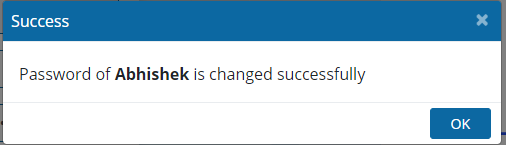
- Once the new password is set, a dialog box will display to give you confirmation about change of password is successfully done.
- Now you can login with Username and password whenever you want.
For better understanding here we have presented a small visual demo for you. 🙂
Previous Step:- Get Started Next Step:- Forgot Password